Example 1
9:16 · 0:10
Turn one authorized photo into a smiling, swaying baby dance. Watch the supplied reference, choose a clip up to 15 seconds, and make your version with Wan.
1 photo · Wan 3.0 · 5–15 seconds · Vertical MP4
Video length · maximum 15 seconds
Each length uses its own trimmed dance and audio reference. The preview shows an approximately 15-second excerpt of the supplied clip.
Add your photo and confirm permission. The button shows the credits for your selected settings.
Supplied dance reference · not generated on this site · approximately 15s
Bonito Bonito Baby AI follows a supplied baby-dance routine from one authorized subject photo. If you meant the single-adult party variation called Dime Dime Baby, use that separate page. The names overlap, but the cast and requested motion are different.
Watch for face drift, unexpected body proportions and hand or foot artifacts, including after turns. Do not infer a success rate from two examples. Review sound and the full downloaded file, and share only with appropriate permission.
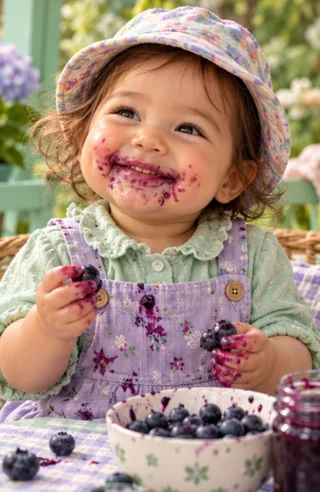
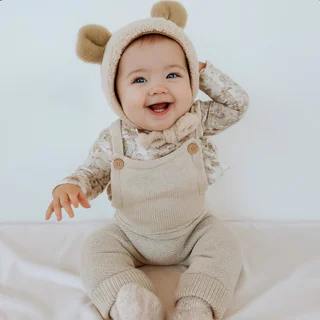
Two supplied AI-generated dance clips with their input photos. Watch how the outfit and little hand gestures appear in each version.
User-supplied generated examples, not a promise of every result. The site, model and exact settings that produced these files have not been independently verified.
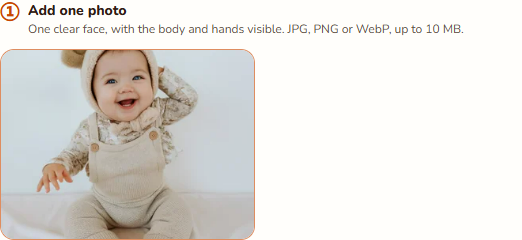
Upload one well-lit photo with a clear face and, where possible, the body visible from head to knees or feet. An upright pose works better for this standing dance than a lying-down photo. Use your own authorized character image or a family photo that the child’s parent or guardian permits you to upload. Keep other people out of the frame so the model has one clear identity to follow. You do not need to record a dance or write a custom prompt.
Try this step in the generatorAdd one photo
 Enlarge interface screenshot
Wan 3.0 is the only model on this page. Select 480p, 720p or 1080p, then choose five, eight, ten, twelve or fifteen seconds. The default is fifteen seconds at 480p in vertical 9:16. Each option updates the credit quote shown on the generation button. The motion file and optional reference audio are trimmed to the selected length; the original twenty-three-second source is not sent in full. Watch the preview to check the style before generating.
Try this step in the generatorChoose your video
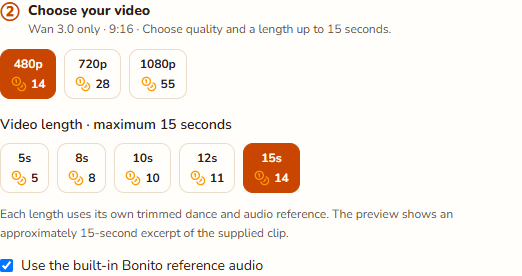 Enlarge interface screenshot
Sign in, check the permission box shown below and press Make my Bonito dance. Allow five minutes or more; this is a planning estimate, not a completion guarantee. The right-hand panel shows estimated progress and an abstract rendering illustration, then your result. Check the face, hands, movement and sound before downloading the MP4. Completed results are also in My videos. Share buttons can open a supported device’s file-share menu or help you download and open a platform.
Try this step in the generatorConfirm and create
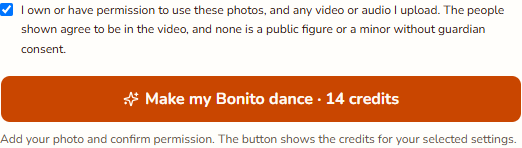 Enlarge interface screenshot
Bonito Bonito Baby AI focuses on the cheerful dance in the supplied video: a baby standing in a simple room, smiling at the camera, swaying and making expressive hand gestures. The reference beside the generator is an excerpt from that clip. The three images below are frames from the same reference, rather than separate customer results. Your uploaded photo supplies the new lead’s appearance; the reference supplies the planned movement and timing.
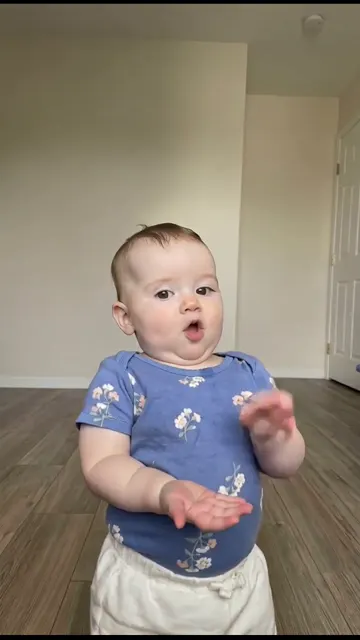
Frame from the supplied dance reference
The dance starts with a relaxed, front-facing pose and a happy expression. Small side-to-side movements make the beat visible without a complicated camera move or a crowded setting. A clear photo with space around the arms gives the model more useful information for these gestures than a tightly cropped face. The result aims to keep one recognizable lead throughout the clip.
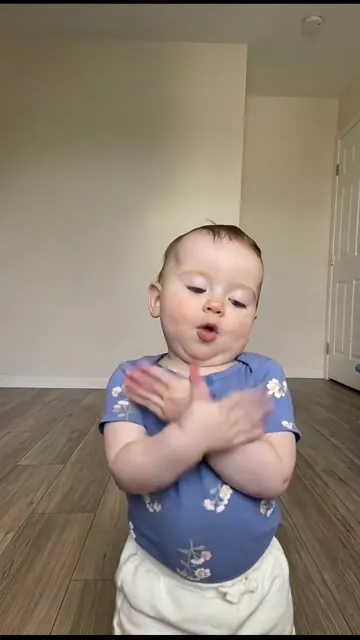
Frame from the supplied dance reference
Later in the reference, the hands move toward the chest for a gentle self-hug. This is a small, playful action, with ordinary clothes and a simple home backdrop. The template asks for natural baby proportions and coherent fingers, rather than an adult body or exaggerated performance. Generated hands and limbs can still vary, so inspect this part of your result before sharing.
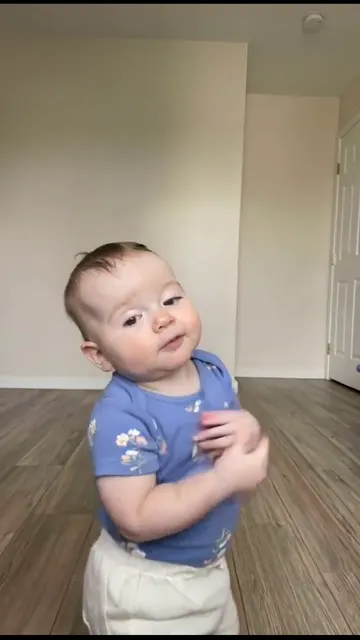
Frame from the supplied dance reference
The longer excerpt includes a hand raised beside the face, along with more smiling and swaying. Shorter settings use the earlier part of the prepared reference, so a five-second video should not be expected to contain every move from the longer clip. Choose fifteen seconds if you want to leave more room for the sequence. No real telephone, drink or other prop is required in your photo.
A standing or upright photo provides a clearer starting pose for swaying, pointing and hand gestures. Try to include the whole body; at least keep the face, torso and hands visible. Avoid a face-only crop, a blanket covering the body or a photo with several children in view. You do not need to make a child stand for a new photograph: choose a suitable existing image you are allowed to use, or an authorized AI character image.
Even lighting, a visible face and ordinary clothing are more useful than heavy filters or elaborate costumes. Busy backgrounds can compete with the dancer, while sunglasses or a hat can hide identifying details. The template asks the model to preserve the source identity and age-appropriate proportions. That instruction is a target, not a guarantee of exact likeness. A generated baby dance can still have changing fingers, unusual facial expressions or imperfect footing; review the entire clip rather than judging just its cover frame.
Choose five or eight seconds for a quick opening smile and sway, or a longer setting for more of the reference gestures. The fifteen-second option offers the longest sequence here. A shorter video uses an earlier segment, so the choreography is not simply a sped-up version of every move. If you post the clip, label it as AI-generated and consider whether a private family chat is a better destination than a public account. Sharing does not happen automatically.
1 photo · Wan 3.0 · 5–15 seconds · Vertical MP4
Bonito Bonito Baby AI uses the site’s Wan cost-based quote for your chosen resolution and duration. The number includes the output length and the corresponding motion reference. Higher resolution and longer clips can use more credits, so the live button is the price to check before starting. Watching the supplied preview does not spend credits. Credit packs and their current prices are listed on the pricing page; this template does not have the separate fixed five-credit offer used by the Ghostface page.
Credits are deducted when the task is created. A provider rejection or a task recorded as failed uses the existing automatic credit-return flow. A completed video with an imperfect face or gesture is a quality issue and does not automatically count as a technical failure. If an input is blocked by a provider’s content check, the response may not identify which photo, prompt or reference triggered it. Contact support with the task details rather than repeatedly submitting the same blocked request.
View credit packs and billing rulesIt turns one authorized photo into a short, vertical baby dance based on the supplied reference. The scene focuses on smiling, swaying and little hand gestures in a simple indoor setting. It creates a new AI video rather than recording a real child doing these actions. The public preview is a reference clip, not proof of a successful generation by this website.
One photo. Choose a single clear subject, ideally upright with the body and hands visible. A parent or guardian must permit the use of a child’s photo. A suitable AI character image you have permission to use is another option. A second portrait or a custom motion upload is not needed for this template.
Fifteen seconds. The available lengths are five, eight, ten, twelve and fifteen seconds, with fifteen selected by default. The server checks this list and refuses longer or unsupported durations. The supplied source is longer, but each generation receives a prepared reference segment rather than the full source file.
This page offers Wan 3.0 only, with vertical 9:16 output. You can choose 480p, 720p or 1080p and one of the listed lengths. Seedance, other aspect ratios, extra people and custom reference files are not offered here. Other pages on the site have their own settings and prices.
The preview includes its supplied audio. Generation receives a separately prepared reference track only when the site’s reference-audio option is available and you select its checkbox. Otherwise the model is prompted for soft room ambience. Audio timing and exact sound reproduction are not guaranteed. This service does not grant rights to a song; use music you are entitled to use when publishing.
Watching the reference is free. Generating your own clip uses credits, calculated from the selected Wan resolution and duration. The current total appears on the button before submission and is checked again by the server. Changing a quality or length option can change the quote. Buy credit packs through the pricing page if your balance is insufficient.
A task recorded as failed returns its deducted credits through the task ledger. A content-policy response can concern a photo, the prompt or the reference material, so changing only the portrait may not resolve it. The reference and browser tests do not establish that every baby image will be accepted. Keep the task details and contact support before repeating a blocked request.
Yes. A completed result can be played and downloaded as an MP4. Supported devices can open the system file-share menu; the browser fallback downloads the video and opens the selected platform so you can attach it and confirm the post. Review the result, obtain the necessary permission and use an AI label. Sharing a child’s likeness publicly is a choice for their parent or guardian.
Upload only photos you are authorized to use. User inputs and completed outputs follow the site’s private-storage and temporary signed-link flow; they are not automatically added to a public gallery. The supplied clip and its stills illustrate the intended dance, not a customer endorsement or a tested likeness guarantee. Read the privacy policy and terms for data handling, acceptable use and rights. The support contact in the footer can help with task or billing questions.
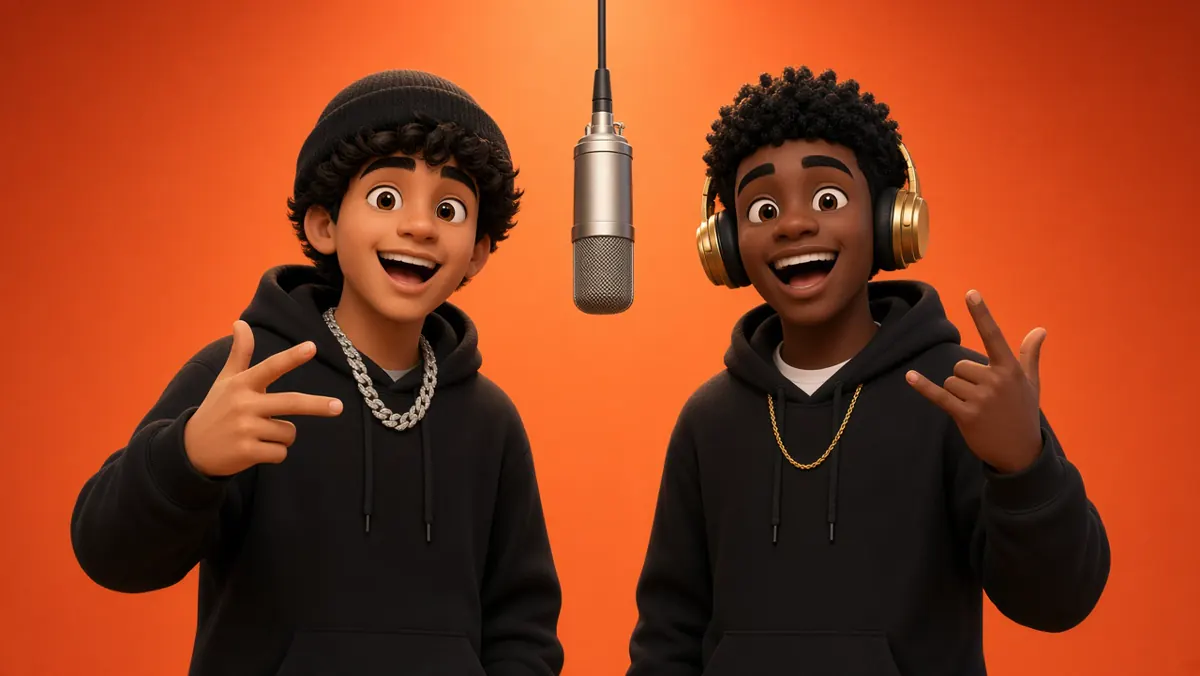
Start from the main studio: bring two portraits together, explore three stages, and choose a reference track or an original rap.
Explore this video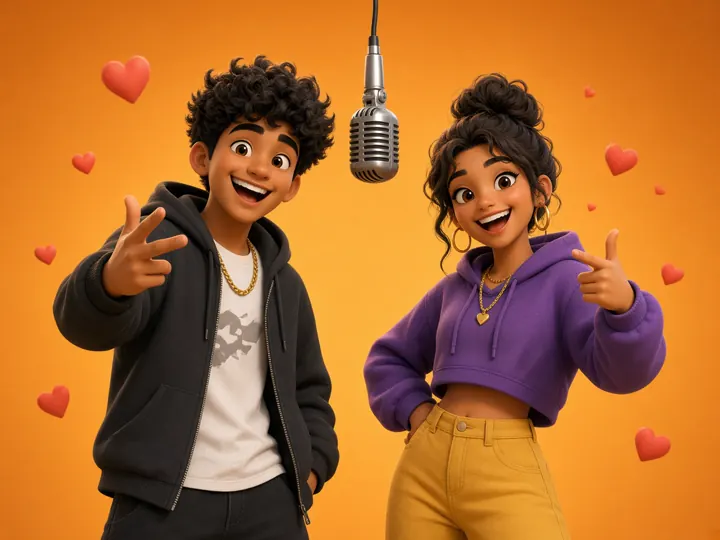
Make a performance for two friends or a couple. Choose who leads, or switch to an original rap and trade lines.
Explore this video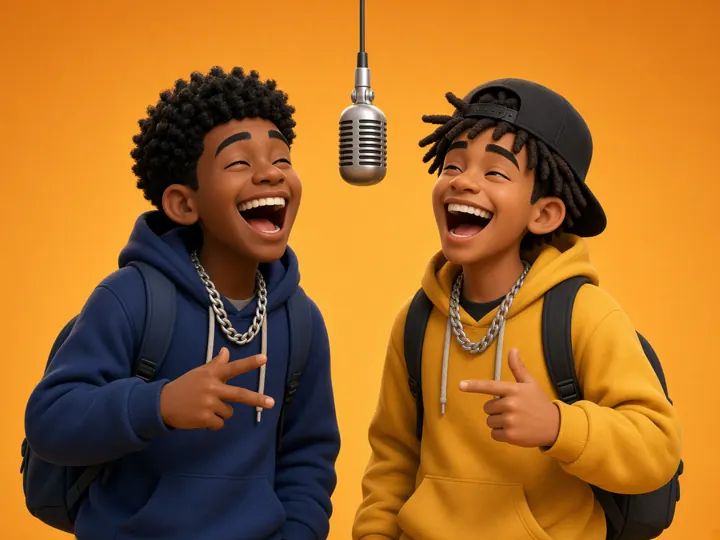
Recreate the orange-booth routine with two portraits, one hanging microphone, and a lead-and-hype performance.
Explore this video