How to Do the Grandpa Dance Party AI Trend From One Photo
Turn one photo into a grandpa dance party AI video: what the trend is, how to join from a single photo, costs, lengths and posting tips.
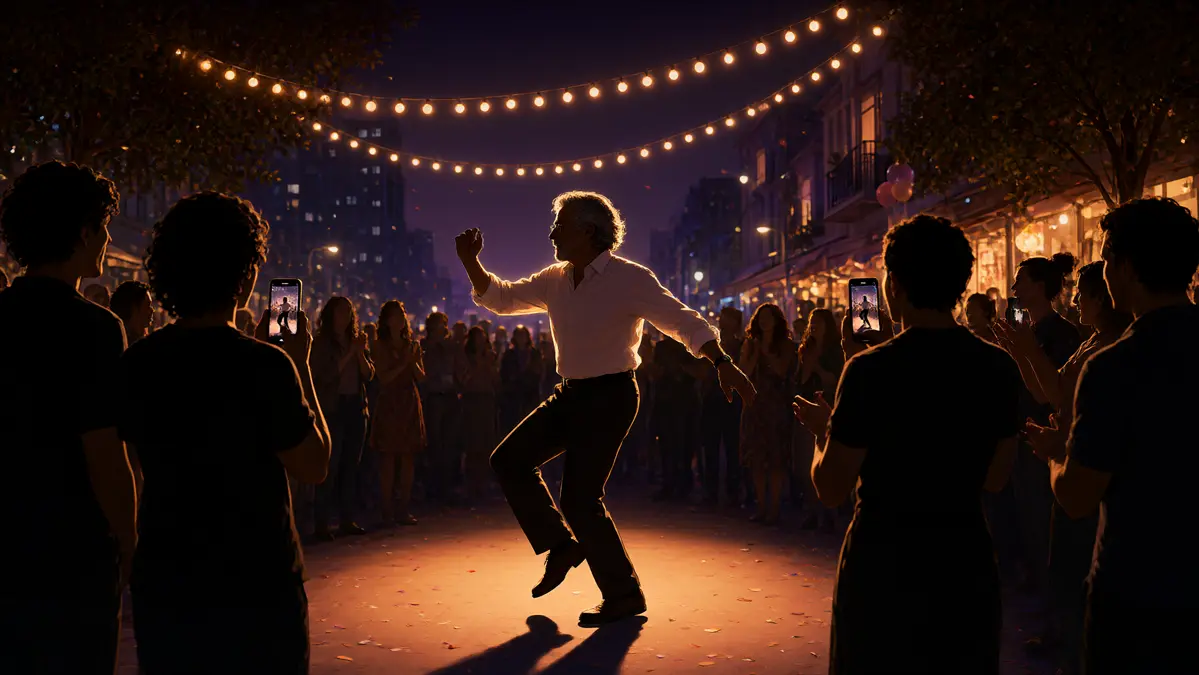
Yes — you can join the grandpa dance party AI trend with one photo. The trend format is simple: an unlikely dancer (a grandpa, a baby, a coworker) becomes the surprise star of a packed night street party, grooving while an anonymous crowd claps, cheers and films. A reference-to-video generator turns your single photo into that clip in a few minutes.
This guide covers what the trend is, how to make your version on the Charme Dance AI page, what it costs, and how to post it well.
What is the grandpa dance party AI trend?
The format spread on TikTok through 2025–2026 under tags like "grandpa at the dance party" and "AI guys dancing": a still photo of an ordinary person is animated into the center of a warm-lit street party, dancing with total commitment while the crowd reacts. The comedy comes from the contrast — someone who "shouldn't" be the party star absolutely owning it.
Two things made it explode:
- Full-body AI animation became good enough. Older face-animation apps only moved the head; current reference-to-video models animate the whole body.
- CapCut template culture. Search "grandpa dancing" in CapCut and you'll find template pages with millions of uses (one popular template shows 4.7 million). Templates made the trend accessible — but also made thousands of near-identical videos.
That second point matters if you want your clip to stand out: template users all share the same crowd, lighting and moves. A generator that keeps your subject's own face, age and outfit — instead of pasting a reference dancer — produces a clip that reads as "your grandpa", not "the meme grandpa".
How to make your grandpa dance party video
The Charme Dance AI generator on this site is built on the "grandpa at the dance party" format. Five steps, about five minutes of waiting:
- Open the scene page and watch the free examples first — no account needed to preview. The examples show the exact party setting, framing and crowd reaction you'll get.
- Upload one photo of your star: JPG, PNG or WebP, up to 10 MB, one person, clear front-facing face. A grandpa in his normal clothes works better than a posed studio shot — the outfit is part of the joke.
- Choose the length: 5, 8, 10, 12 or 15 seconds. Maximum prepared motion is 14.9 seconds; for 15-second outputs the model continues the party naturally rather than stretching a shorter clip.
- Pick the resolution — 480p (default), 720p or 1080p — and check the credit quote shown before you generate. Watching examples is free; generating uses credits from one-time packs (see pricing).
- Generate, review, download. Allow at least five minutes. Check the face, hands and body proportions before posting. The output is a vertical 9:16 MP4 with no watermark added — the prompt explicitly excludes captions, logos and watermarks.
What does it cost?
Watching every example on the page is free, no account required. Generating costs credits, quoted for your exact length/resolution choice before you commit. Credits come as one-time packs — there is no subscription, so a single trend video doesn't start a recurring charge. If a job fails for technical reasons, the charged credits return automatically; a finished video you dislike is charged, and a re-render is a new paid attempt. That policy is stated plainly on the scene page because it's how GPU rendering economics actually work.
Whose face appears in the video?
Only the person in your photo. The crowd stays generic, anonymous extras — nobody in the crowd inherits your subject's face, and the supplied reference clip is used only for setting, framing and party timing, not for the dancer's identity. The generator requests the same identity, age, build and outfit cues as the photo, though exact preservation is never guaranteed (check the face and hands, as with all AI video).
Five tips for a clip that stands out
- Match the energy to the person. A shy smile mid-groove is funnier than full hip-hop moves for some people; let the photo's vibe lead.
- Go shorter for tighter motion. 5–8 second cuts keep the choreography crisp; 15 seconds gives the model more room to drift.
- Post with the caption doing the setup. "My dad discovering TikTok parties at 71" beats "AI video" — the contrast is the joke.
- Disclose the AI. Platforms increasingly expect AI-generated content labels, and disclosure doesn't kill the humor.
- Use a licensed sound when posting. The generated scene sound is its own audio; rights to the original trend track are not granted, so add a platform-licensed track after downloading if you want the meme audio.
FAQ
Do I need a video of my grandpa dancing?
No. One photo is enough — the choreography comes from a prepared reference clip, not from footage of your subject.
Will it look exactly like him?
Close, but not pixel-perfect. The model requests the same identity, age and outfit cues; exact preservation isn't guaranteed. Use the clearest, most front-facing photo you have and check the result before sharing.
Can I do this with a photo of my kid / my dog / my coworker?
One human subject per photo works best for this scene. Children's photos require parent or guardian permission, and you should only use photos you're allowed to use — that's the site's terms, not just etiquette.
Is this the same as the CapCut grandpa template?
Same trend family, different mechanics. CapCut templates remix the same pre-made clips; this generator builds a new video around your photo, keeping your subject's own face and outfit.
Where do I start?
Open the Charme Dance AI page, watch the examples, then upload your photo. If you want the broader how-to first, see How to Make an AI Dance Video From a Photo — or browse all scenes for a different vibe.