How to Make an AI Dunk Video From One Photo (Living Room)
Turn one photo into an epic living-room slam dunk with AI. The #dunkingai trend explained, exact steps, costs, lengths and what to check before posting.
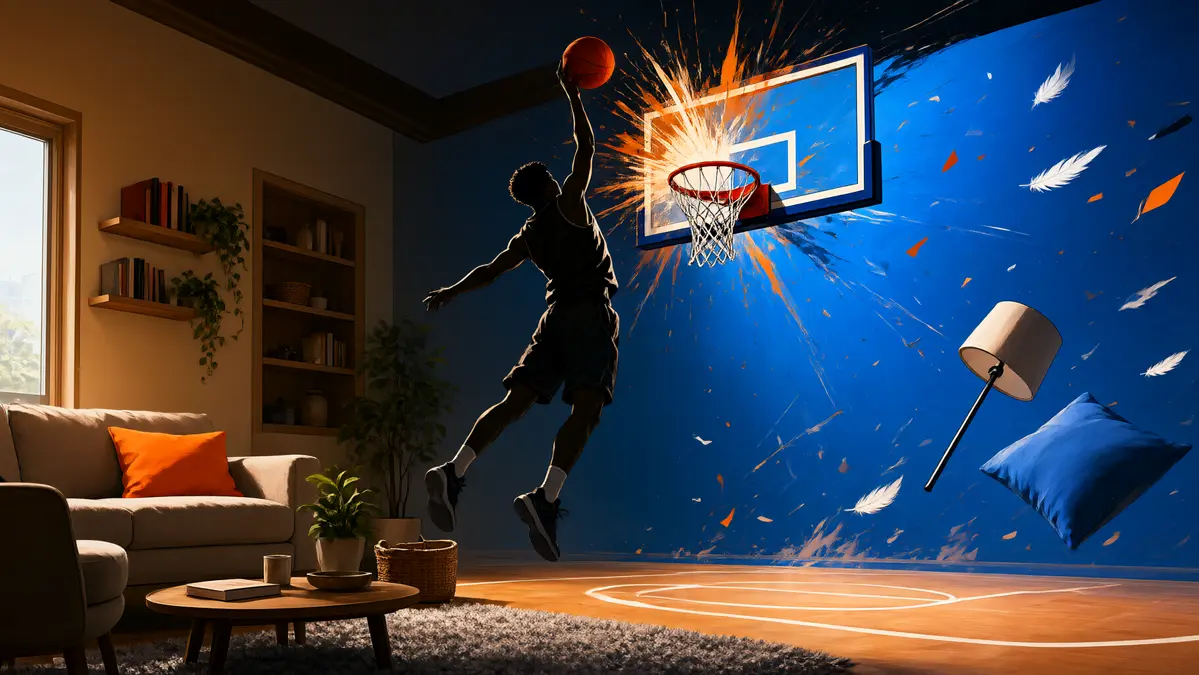
Yes — you can make an AI dunk video from one photo. Upload a single picture of yourself (or a willing friend), and the generator turns a cozy living room into a basketball court mid-play: the couch becomes the sideline, the lamp dodges, and your subject launches into an epic slam dunk with full broadcast drama. The result is a vertical 9:16 MP4, 5 to 12 seconds long, with no watermark added.
This guide covers the trend, the exact steps on the AI Dunk Video page, costs, and what to check before posting.
What is the AI dunk trend?
The #dunkingai wave spread through 2026 as AI video templates got good enough to sell a believable athletic highlight. The formula: an ordinary setting (usually a living room), an ordinary person, and a completely unreasonable dunk. The comedy is the mismatch — the physics of an NBA poster dunk applied to someone in slippers next to a coffee table.
Template versions of the effect circulate through AI video tools and CapCut-style template libraries; all of them animate a photo you supply. What varies between tools is what we'll compare honestly below: input requirements, pricing transparency, and output control.
One boundary this site keeps deliberately: the generator produces an original scene with your subject as the dunker. It does not recreate real basketball players, TV characters or branded broadcasts — the upload is the star, in an entirely fictional living-room arena.
What you need before you start
- One photo of one person. JPG, PNG or WebP, up to 10 MB. A clear, front-facing face works best — the model reads identity from the face. Full-body photos aren't required; the generator composes the dunk pose.
- Permission. Only dunk people who agreed to be dunked. The subject becomes the athlete of the clip — use photos you own or have the person's consent to use.
- A free account to generate. Watching every example video needs no account; generating requires a free account because credits are tracked per user.
You do not need: a basketball, a hoop, a trampoline, video footage of yourself jumping, or any editing software.
How to make your AI dunk video, step by step
- Preview the scene free. Open the AI Dunk Video generator and watch the examples — you'll see the exact living-room-to-court transformation, the dunk arc and the landing before you spend anything.
- Upload one photo. Pick the sharpest, most front-facing picture of your dunker. Casual clothes make the dunk funnier; the model keeps your subject's own outfit.
- Choose the length — 5, 8, 10 or 12 seconds. Shorter cuts (5–8s) land the joke fast; the 10–12 second options let the full run-up, launch and rim-hang drama play out.
- Pick the resolution — 480p (default), 720p or 1080p — and read the credit quote shown for your exact combination before you generate.
- Generate, review, download. Allow five minutes or more, longer when the queue is busy. Check the face and hands mid-dunk (fast motion is where AI video drifts most), then download the MP4 and post.
How much does it cost?
Pay-per-video, quoted up front: the generator displays the exact credit cost for your chosen length and resolution before you commit. Credits are one-time packs — no subscription, nothing renews. Watching examples is free without an account. A technical failure returns the charged credits automatically; a completed video you dislike is charged, and a re-render is a new paid attempt.
For context on the category: subscription dance-video apps run $4.99–$12.99 per week in user reports, and free tiers of many tools stamp watermarks on exports — the trade-offs are compared in the general photo-to-video guide, and the watermark question in the no-watermark guide. This site adds no watermark — the generation prompt explicitly excludes captions, logos and watermarks.
Six posting tips for dunk clips
- The caption sets up the mismatch. "POV: you told the group chat you still got it" — the joke is the gap between the setting and the athleticism.
- Go short for feeds. The 5–8 second cut loops better; save 12 seconds for the full drama when your audience already knows the bit.
- Dunk the least likely person. Grandparents, the friend who "doesn't do sports", the boss (with permission) — the mismatch is the content.
- Check the hands on the rim. Fast limb motion is the hardest thing for video models; review the grip and landing before posting.
- Use licensed sound. Generated scene audio is its own; add an in-app track for the arena effect.
- Disclose AI content where the platform expects it.
FAQ
Do I need a photo of myself jumping or playing basketball?
No. One ordinary photo is enough — the generator creates the run-up, launch and dunk. A neutral standing photo actually works best because the face is fully visible for identity.
Can I dunk a celebrity or a TV character?
No — and honest tools won't help you try. This site's prompt explicitly excludes real people, TV characters and broadcast brands; the dunker is whoever is in your photo, with permission.
How long can the video be?
5, 8, 10 or 12 seconds on this scene — the 12-second option covers a full run-up-to-landing sequence. The reference motion is capped at just under 10 seconds of prepared material, with longer outputs continuing the scene naturally.
Is the dunk realistic?
Believable in motion, fictional in physics — that's the bit. Fast motion can reveal AI tells (hands, rim contact); review before posting and re-render if needed.
Where do I start?
Open the AI Dunk Video page, watch the free examples, upload your photo. Prefer a dance scene or a two-person format? Browse the main studio or read How to Make an AI Dance Video From a Photo first.