How to Make a Burning Bridges AI Video From One Photo
Learn how to make a Burning Bridges AI video from one photo. Follow the party-scene steps, check sound and credits, and review your finished clip.
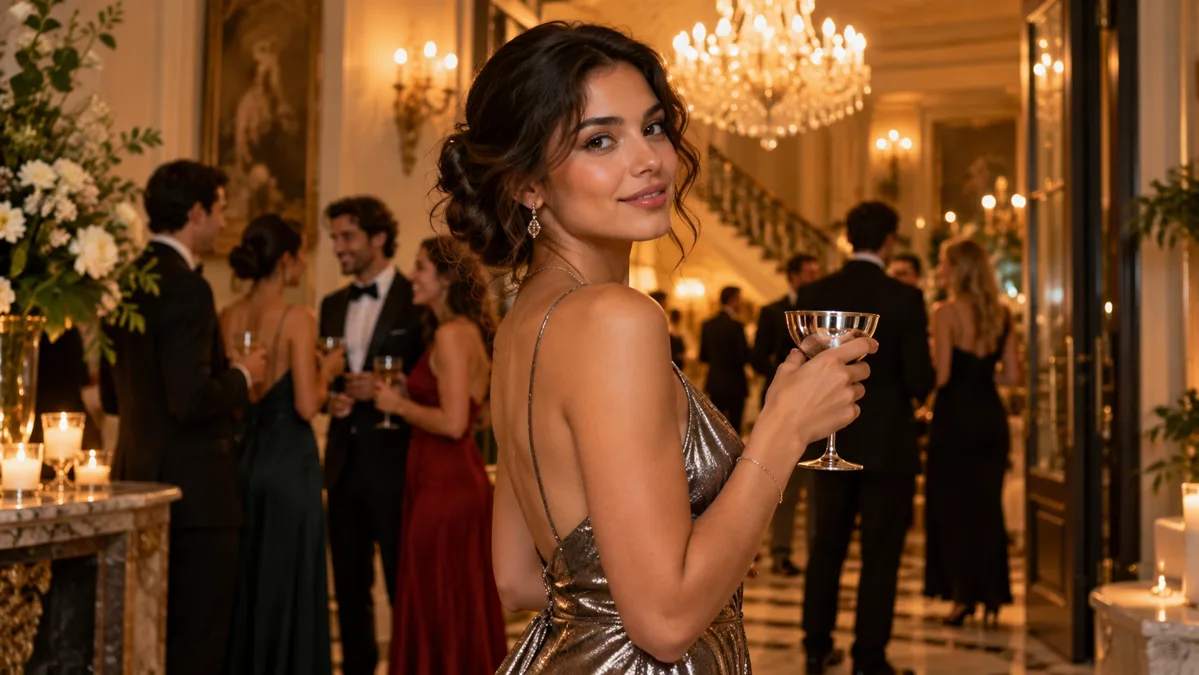
AI-generated editorial cover illustration; not a generated-video result.
To make a Burning Bridges AI video on this site, upload one clear portrait, choose output quality, review the sound and credit quote, and submit. The preset uses a prepared party-scene motion reference: your photo casts the foreground lead, while the scene guides the cup, crowd and camera movement. You do not need to film yourself or write a prompt.
Open the Burning Bridges AI generator to follow along. The result is a newly generated interpretation, so check the face, hands, cup and soundtrack before sharing. This is an independent tool, not an official artist product.
What the Burning Bridges AI scene contains
The scene is a short party entrance: a lead performer moves among guests in a warm chandelier-lit room, holding a cup while the camera follows. The reference establishes timing and composition; the model generates new frames instead of pasting your photo unchanged onto a video. It can still alter clothing, introduce unwanted details or miss a gesture.
Watch the example on the Burning Bridges tool page before deciding whether its scene fits your idea. The page identifies its displayed examples; they do not promise that your own result will reproduce every frame. You can also compare the three reference stills on the tool page to understand the intended cup, gesture and party composition.
What you need
- One portrait of the person who should lead. Use JPG, PNG or WebP up to 10 MB. Choose one clearly visible adult subject and only use a photo you have permission to upload.
- An account and enough credits for the quote displayed for your chosen quality. You can inspect the interface and examples before generating.
- A browser on a phone or computer. The scene and reference movement are supplied by the preset; no separate motion clip is required.
- Permission to share the likeness and any audio you later publish. The on-page sound option does not itself grant a music-publication licence.
The tool accepts one input portrait for the foreground person. Uploading a group photo does not assign identities to the background guests. If the best source contains several people, make a separate crop of the intended lead, retaining the full face and some shoulders. Our photo selection guide covers lighting and framing in more detail.
Step 1: Add the party lead
In the generator, find Your party lead and select Upload the lead portrait. Choose the one image that identifies the foreground person. Look at the thumbnail after selecting it: is it the intended photo, and is the subject large enough to recognize?
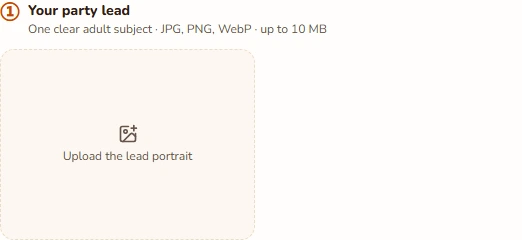
Actual tool interface shown for orientation. Select the image to open the Burning Bridges generator; the exact interface may change.
A front-facing, evenly lit portrait with unobstructed eyes and some upper body is a useful starting point. Dark sunglasses, a small face in a crowd, an extreme profile or heavy filters leave less visible information. A photograph does not need a silver cup, chandelier or raised hand: those belong to the prepared scene. Better input helps the model interpret the subject, but it does not guarantee identity preservation.
Step 2: Choose quality and inspect sound
The preset uses Wan 3.0, a fixed 15-second landscape 16:9 scene and a prepared motion reference. The quality choices are 480p, 720p and 1080p. Pick the quality you need, then look at the updated credit quote in the live interface. The screenshot is an example of where the controls appear, not a price guarantee.
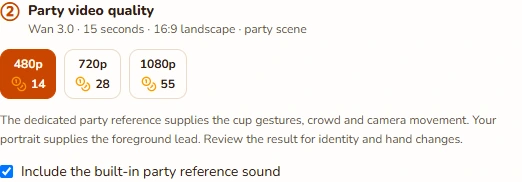
Actual tool interface; availability and credit amounts can change. Select the image to open the generator and check the current quote.
When the built-in reference sound is offered, the interface lets you keep it selected or turn it off. Without it, the prompt requests party ambience rather than a particular song; generated audio can still vary. This preset does not offer a custom audio upload on its own page. If you need different music, add a recording you are authorized to use in your own editor or the platform where you share the downloaded video.
The template does not accept a different aspect ratio, length or custom movement on this page. If your destination needs a vertical edit, account for that when framing your post; cropping a landscape video can remove people or action near the edges. The AI rap duo generator is a separate two-person workflow, not an alternative length setting for this party scene.
Step 3: Confirm permissions and create
Read the permission checkbox, sign in if prompted, and confirm the current credit total. Submit only after you are comfortable with the input photo and sound choice. The server checks the charge for the settings again before submitting. Progress appears in the preview while the job runs; actual waiting time depends on the queue and model.
The tool's example is available to watch, but it is not a free personalized render. A personalized generation uses credits. A technical failure returns credits automatically; a completed video can still contain visual flaws and is charged as a completed job. A new attempt is another paid generation, so inspect the result before deciding to retry.
Step 4: Watch the whole clip and download
When generation succeeds, the preview switches to the completed result. Play it from beginning to end with sound, then download the MP4 if it meets your needs. You can return to the job through My videos while signed in to the same account.
Use this short review before posting:
- Identity: does the foreground lead remain recognizable when the camera moves?
- Hands and cup: do the prop and gestures stay coherent throughout the scene?
- Background: are any extra or unexpected people or details distracting?
- Sound: is the selected audio present and appropriate for the audience?
- Framing: will the intended platform crop any important part of the landscape frame?
This is an AI-created party scene. Do not present it as evidence that a person attended an actual event, and obtain permission from anyone whose likeness or recording you use.
If the face or motion looks wrong
Start by identifying where the change occurs. If the face is unclear from the opening, compare the source portrait: was it blurred, shadowed or partly obscured? Try a clearer image before paying for a higher-resolution retry. More output pixels cannot recreate facial detail absent from the input.
If the face looks close at first but changes as a hand passes in front, that is a motion and occlusion problem rather than proof that the file was invalid. A clearer portrait may help, but it cannot guarantee the gesture will render correctly. If the cup changes shape, inspect the complete result and decide whether a new paid attempt is worthwhile.
If the sound is unexpected, check whether the optional reference sound was available and selected. Replacing a portrait does not automatically change the soundtrack. If the job failed technically, check its status and credit balance before retrying; distinguish that from a completed result that you simply dislike.
Frequently asked questions
Can I use a selfie?
Yes, if it is a supported image and clearly shows the person who agreed to appear. A sharp face with some shoulders visible is a useful starting point.
Do I need the original video or a prompt?
No. This preset supplies its own motion reference and scene instructions. It is not a general prompt editor, and you do not need to upload an original clip.
Can I place several friends in the crowd?
The preset accepts one portrait for the foreground lead. It does not provide separate photo slots to assign identities to background guests.
Can I change the video length or format?
This tool page uses a fixed 15-second, 16:9 landscape setup. You can select the available output quality, but not an alternative duration or aspect ratio here.
Can I use my own song?
This specific page does not offer a custom audio upload. You can add permitted audio in a separate editing or publishing workflow, subject to the rights and platform rules that apply.
What if my generation fails?
Technical generation failures return credits automatically. A successfully completed clip can still have imperfect facial details or motion and is charged; a retry is a new attempt.
Next steps
When your portrait is ready, open the Burning Bridges AI generator, check its current quote and watch the full result before sharing. For a different two-person performance, read how to make an AI rap video from two photos; for input advice, see best photos for AI rap videos.