How to Make an AI Rap Video From Two Photos
Learn how to make an AI rap video with two photos: choose a stage, review sound and credits, troubleshoot your clip, and share it responsibly.
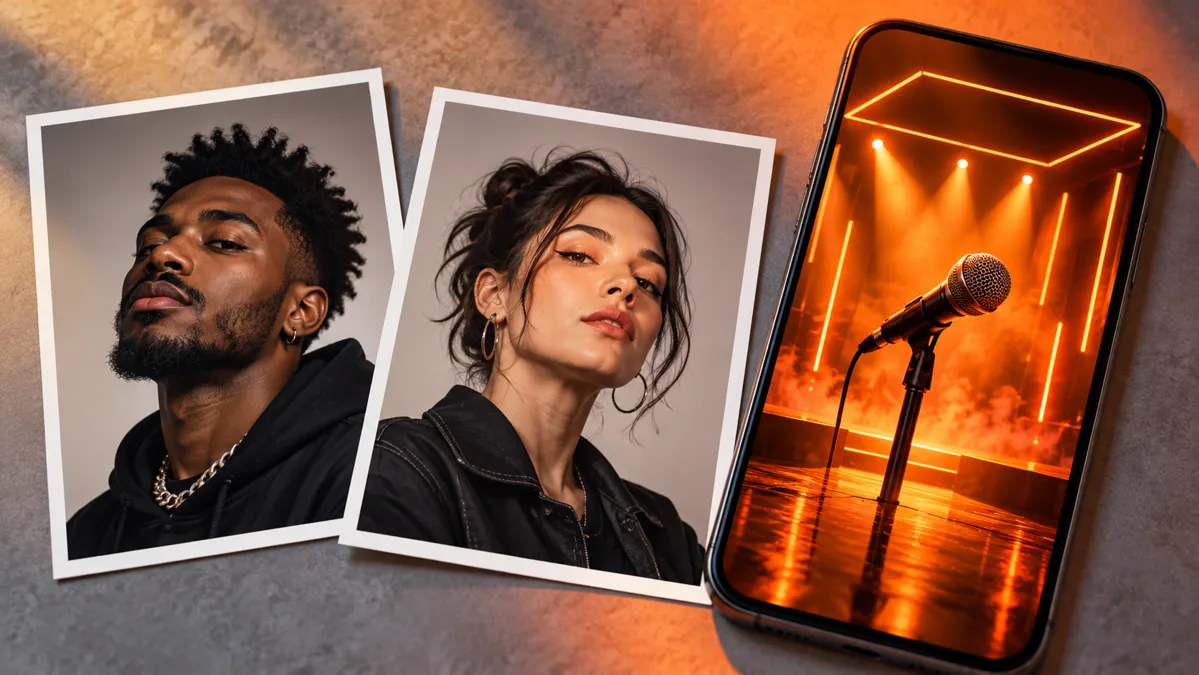
AI-generated conceptual illustration; not a generated-video result.
You can make an AI rap video by choosing two separate portraits, assigning each person a position, selecting a stage and sound mode, and generating a short clip. Before you begin, get permission from everyone in the photos and check that you have rights to any audio or motion reference you upload. The result is an AI interpretation, so review the faces, movements and audio before sharing it.
Open the AI rap video generator in a browser and keep this checklist nearby. The current studio accepts two separate images; it does not automatically split a picture containing both people.
What to prepare
Choose a clear JPG, PNG or WebP for each performer, no larger than 10 MB each. A front-facing or nearly front-facing portrait with even lighting and some shoulders visible gives the model more useful information than a tiny face in a group shot. If the only photo you have shows both people, crop it into two separate files first. The photo selection guide explains how to compare difficult choices.
You also need an account and enough credits for the selected settings when you submit. You can explore the interface and reference preview first. A reference preview is not a free personalized render. The price on the generation button is the amount to check: model, resolution, length and an uploaded motion reference can affect the quote.
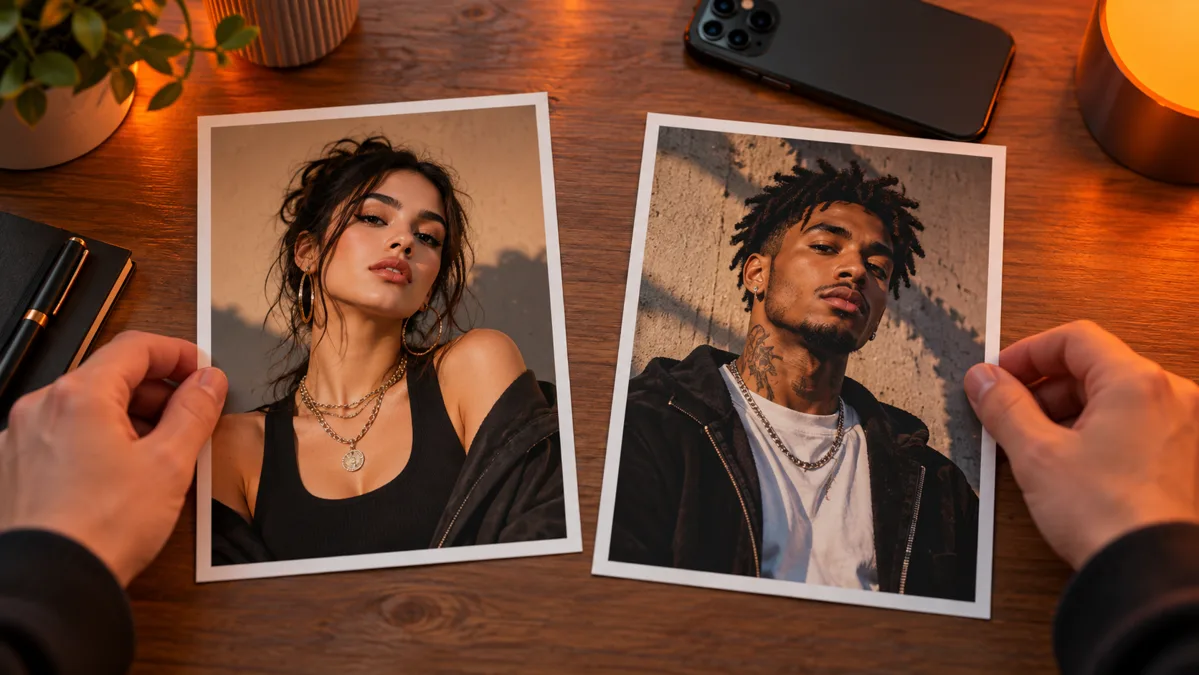
AI-generated illustration of two separate source portraits; not a product screenshot.
1. Add the left and right performers
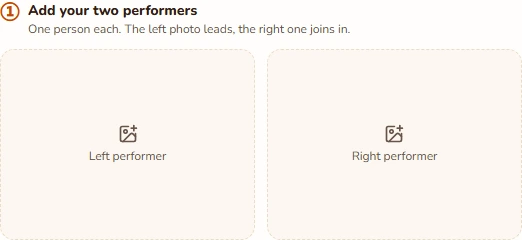
Website interface example: select the image to open the two-photo generator. Controls and prices may change.
In Add your two performers, select the Left performer box for the lead and Right performer for the person joining in. Choose one file for each. Check that each thumbnail shows the intended person; crop a group photo into two files first.
Upload one image to each slot. The first slot corresponds to the left performer and the second to the right performer. For the reference-style routine, the person at the microphone leads while the other supports. Check the order before generating, especially if the joke depends on who is delivering it.
The two source photos do not need matching backgrounds. They should have similarly clear faces, however: a sharp portrait paired with a dark, blurred image makes the second person harder to interpret. Avoid faces covered by hands, masks or dark glasses. An AI model can still change a face or wardrobe even with strong inputs.
2. Pick a stage and a direction
Choose Orange Stage for a hanging-microphone booth look, Studio Booth for a recording-studio setting, or Street Cypher for a street-inspired scene. These are preset directions, not photographs of a place you visited. The Hotel Lobby AI page focuses on the orange-booth routine; the AI rap duo page explains the two-person setup.
For supported non-realistic subjects such as pets or cartoons, you can choose an original AI rap mode and add a short topic such as “two friends argue about the last slice of pizza.” A concrete relationship and one situation give the system more direction than a long list of unrelated jokes. The topic field is limited to 120 characters. See AI rap video ideas for examples.
3. Choose video and sound settings
Open Video settings to inspect the model list, quality, length and format. For real-person photos the panel recommends Wan 3.0. The Seedance options say they are for pets and cartoons and that real faces are refused. If a real-person input is refused, return to the model panel and select Wan. A technical provider failure returns credits; a completed but imperfect clip is still charged.
Under Moves, the studio offers the built-in routine or Your clip for a 2–15-second motion reference. Under Sound, check the choices currently shown: No extra track, a built-in track if enabled, or Your song. Motion and audio are separate inputs: uploading one does not automatically supply the other.
Wan 3.0 is the reference-track mode; Seedance options are used for an original AI rap. The site warns that Seedance refuses real human faces, so use Wan for real-person portraits and check the live model guidance. Available lengths are 5, 8, 10, 12 and 15 seconds, with resolution choices depending on the model. Choose 9:16 when you need a vertical frame and check the final crop before posting. A wider frame may be more suitable for a desktop presentation.
The studio can offer a built-in motion reference and, when enabled, a reference track. You can also choose an uploaded motion clip or permitted audio where the controls allow it. These are separate inputs. A topic does not rewrite the words in a prerecorded song, and a reference preview does not grant rights to its soundtrack. Confirm the available controls in the live studio, because the site may change its configuration.
4. Review the quote and generate
Sign in, check the credit total, confirm that you have the necessary permissions, and submit. The server calculates the final quote for the settings. Do not close the page just because the progress indicator moves slowly: generation involves a queue and processing time can vary. Your finished video appears in the preview, and signed-in users can revisit jobs in My videos.
Technical generation failures return credits automatically. A completed video can still contain an imperfect face, hand or motion; a successful render is charged and another attempt costs credits. That distinction matters when planning experiments. Consult the pricing page for the current packs and review the actual quote before every submission.
Concept illustration of the review step; this is not a generated video result.
5. Watch the full clip before sharing
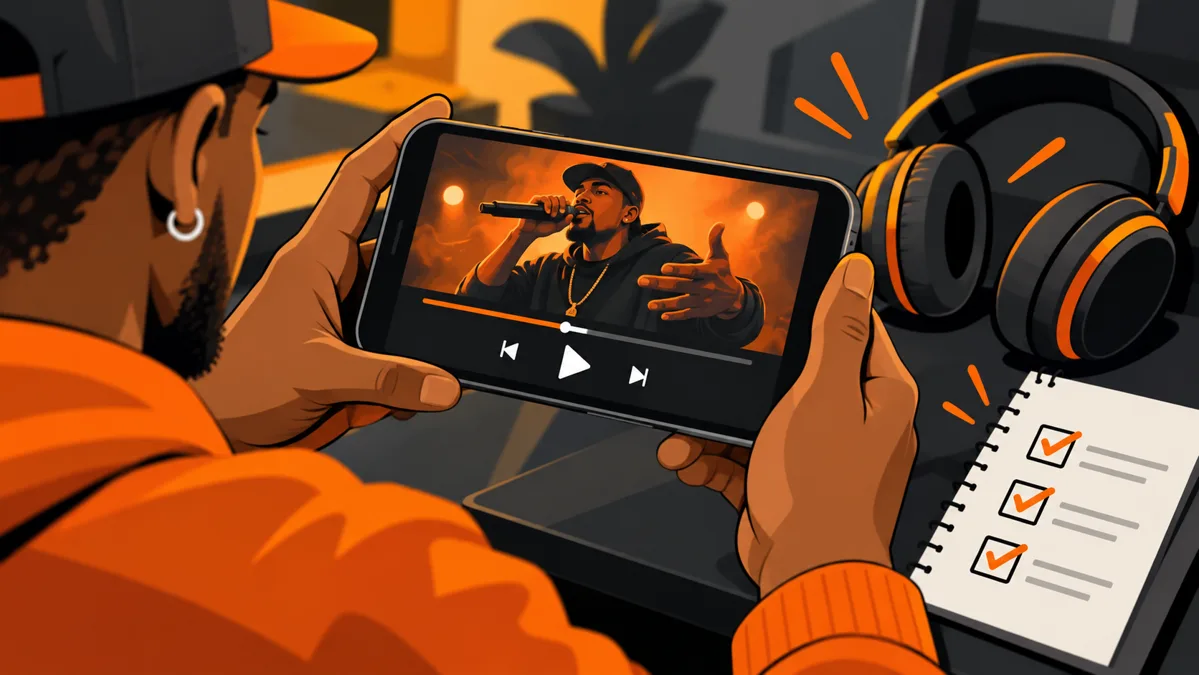
Play the whole video with sound. Look at each person at the start, in the middle and near the end: is the intended person still recognizable? Did the two positions remain sensible? Are hands, clothing and the microphone coherent? Listen for unexpected or unsuitable audio, then download the MP4 if you are happy with it.
Share only with the people involved or an audience they agreed to. If you post publicly, follow the platform's current AI-labeling and music rules. Owning the photographs or subscribing to a music service does not automatically give you the right to publish someone else's likeness or a commercial recording.
Troubleshooting a first attempt
The face looks different. Try a sharper, less obstructed source photograph. More output pixels cannot recover facial detail that is absent from the input. Change one input at a time so you can see what helped.
The movements do not match the reference. The model interprets motion rather than copying every frame exactly. A hand can pass in front of a face, a person can move less than expected, or the timing can drift. Watch the entire output before deciding whether a new attempt is worthwhile.
The words are not what I typed. A reference recording follows its own audio. Choose an original AI rap mode when your goal is a newly generated performance based on a topic, and check what the live controls actually offer.
Frequently asked questions
Can I make an AI rap video from two photos?
Yes. This studio uses one separate image in each performer slot. Crop a shared group photo into two individual pictures before uploading; automatic splitting is not currently offered.
Do I need to write lyrics myself?
No. The original AI rap mode takes a short topic for supported subjects; Seedance may refuse realistic human faces. Reference-track mode follows the selected reference rather than rewriting its lyrics. Exact output may vary.
How long does generation take?
It varies with the queue and selected settings. Follow the progress display and return to My videos if you leave the page; no fixed completion time is guaranteed.
Can I use my phone?
The studio runs in a browser on a phone as well as a computer. Make sure the browser can access your two image files, and check a vertical preview before publishing.
Is the result identical to the example?
No. A reference shows the intended style or movement, not a guaranteed outcome. Faces, gestures, audio and timing can differ between renders.
Continue with the two-person studio
The AI Rap Duo generator opens with the shared-stage workflow. For a focused orange-booth reference, read how to do the Hotel Lobby AI trend. If you want a one-person party scene instead, see how to make a Burning Bridges AI video.